It's a common enough problem that you can find untold numbers of questions posted to forums and blogs: why am I getting a 401 denied error when trying to get to/create a mysite personal site in SharePoint?
The problem usually is manifest by first being presented with a username/password prompt three times, followed by a 401 error. Interestingly, in Firefox, it appears that sometimes you just get unending username/password prompts.
Why this is happening: who knows? It's often possible to track down the problem, usually related to application pool permissions or some rogue setting in SharePoint. Even if you do find the problem, though, enough settings in SharePoint are reasonably inaccessible after the initial setup that finding your way to correcting it can take a very, very long, frustrating time.
Our solution has been simply to create a new default shared services provider (SSP) and associate all of the web applications, including the existing mysites, to the new SSP.
The Shared Services Provider in SharePoint is the glue that holds everything together. It manages, in particular, what happens when you click on the "mysite" link. So when that link no longer functions properly, one way to fix it is to set up a new SSP using a new content database and new IIS web site. In this way, we can eliminate a lot of errors without having to do a lot of painful troubleshooting. We'll go through those steps now.
Note that these steps are for SharePoint 2007; they may work on 2003 as well, but I've no experience with it, so I make no promises as to its applicability.
Create the New Shared Services Provider
Open SharePoint Central Administration and click on the Shared Services Administration link on the left-hand side of the screen.
You should see something like the screen shot below. To create a new Shared Services Provider, click on the New SSP link. You'll want to create a new web application to host this, on a new port. Also, specify a new SSP Database, ensuring that any erroneous settings don't get migrated.
Make sure that you use your existing MySite web application (in this example, named "Sharepoint - Personal") for the My Site Location in setting up this new SSP.
Once you've created your new SSP, you can set it as the default (using the Change Default SSP link). Once you've done that, use the Change Associations link to associate all of your existing web applications to the new SSP.
Having done that, you're probably good to go. You might, just to be safe, double-check your My Site settings in the new Shared Services site.
Check your My Site Settings
On the left-hand menu, under Shared Services Administration, click on the title of your new SSP. This will open the SSP home page, like below.
To create a new Shared Services Provider, click on the New SSP link. You'll want to create a new web application to host this, on a new port. Also, specify a new SSP Database, ensuring that any erroneous settings don't get migrated.
Make sure that you use your existing MySite web application (in this example, named "Sharepoint - Personal") for the My Site Location in setting up this new SSP.
Once you've created your new SSP, you can set it as the default (using the Change Default SSP link). Once you've done that, use the Change Associations link to associate all of your existing web applications to the new SSP.
Having done that, you're probably good to go. You might, just to be safe, double-check your My Site settings in the new Shared Services site.
Check your My Site Settings
On the left-hand menu, under Shared Services Administration, click on the title of your new SSP. This will open the SSP home page, like below.
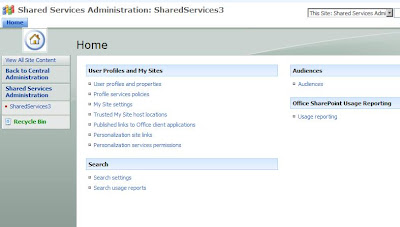 Click on the My Site Settings link and make sure that the Personal Site Location field matches what you had set up previously. Having done that, you're done!
Delete any erroneously-created My Sites
Unless you're not: if you discover later that the personal site location field is incorrect, you may end up with users creating new sites when they already had one. This is disconcerting, but it's easily fixed.
To delete a user's My Site, simply click on the Delete Site Collection link in the Application Tab of the Central Administration page. There you can select the offending site collection from the My Site web application. This will delete the My Site without problem. However, you still need to change the My Site settings in the SSP, as above.
And: having done so, issue a iisreset /noforce on the front-end web servers. Unless you do this, the user runs the risk of being directed, even still, to the now-nonexistent My Site. This gives them a 404 (not found) error. After the iisreset, they should be directed, again, to their original my site.
Click on the My Site Settings link and make sure that the Personal Site Location field matches what you had set up previously. Having done that, you're done!
Delete any erroneously-created My Sites
Unless you're not: if you discover later that the personal site location field is incorrect, you may end up with users creating new sites when they already had one. This is disconcerting, but it's easily fixed.
To delete a user's My Site, simply click on the Delete Site Collection link in the Application Tab of the Central Administration page. There you can select the offending site collection from the My Site web application. This will delete the My Site without problem. However, you still need to change the My Site settings in the SSP, as above.
And: having done so, issue a iisreset /noforce on the front-end web servers. Unless you do this, the user runs the risk of being directed, even still, to the now-nonexistent My Site. This gives them a 404 (not found) error. After the iisreset, they should be directed, again, to their original my site.


